





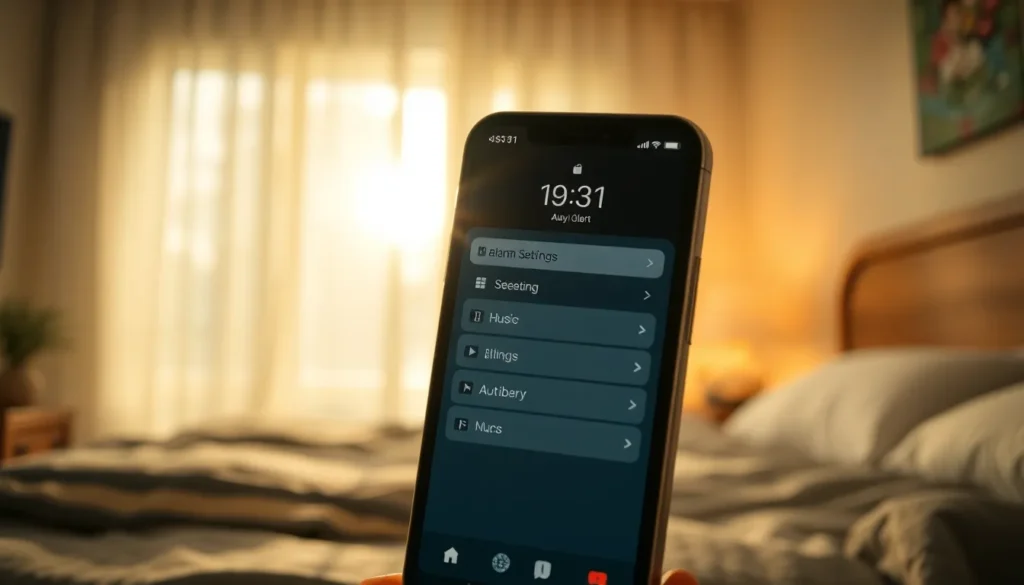
Waking up to the sound of a blaring alarm can feel like being jolted from a peaceful dream into a chaotic reality. But what if that rude awakening could be transformed into a personal concert? Imagine starting your day with your favorite song instead of the usual cacophony. It’s time to turn your iPhone into a musical wake-up call!
Understanding Alarm Settings On iPhone
Alarm settings on an iPhone help users manage their waking experience. Transforming an abrupt awakening into a more enjoyable one is possible through customization.
Default Alarm Tones
Default alarm tones provide basic wake-up options. These include classic sounds such as Radar, Beach, and Silk. Each sound serves a different mood, with softer tones creating a gentle wake-up experience. Users can select these tones when setting an alarm for a straightforward approach. The iPhone also allows previews of each tone, enhancing the selection process.
Custom Alarm Options
Custom alarm options enable personalization on an iPhone. Users can select their favorite song directly from their music library or streaming service. Only songs available for playback can serve as alarm tones. After choosing, the song automatically plays when the alarm goes off. This feature creates a unique waking experience that enhances overall enjoyment. Customization makes alarms feel less generic and more special.
Selecting The Perfect Song
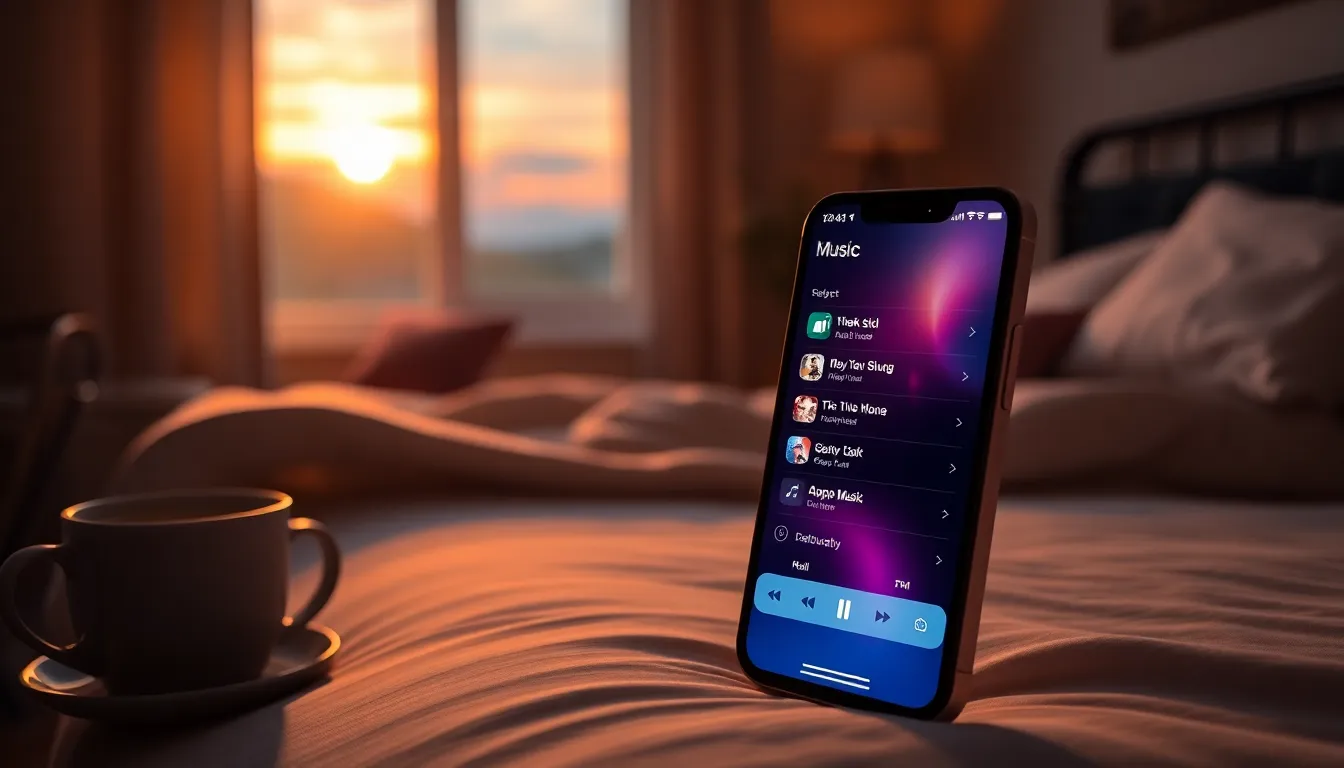
Choosing the right song for an alarm brings joy to waking up. It’s essential to select a track that uplifts mood and provides motivation.
Where To Find Your Music
Songs can be accessed through various platforms on your iPhone. The Apple Music app offers a vast library filled with thousands of songs and playlists. Spotify users can also select tracks from their playlists. Additionally, songs downloaded from iTunes remain available for selection. Using the Music app, navigate through your library to find the perfect tune. Songs can be filtered by artist, album, or recently added to simplify the search.
Song Formats Supported
Certain audio formats are compatible with alarm customization. AAC, MP3, and WAV formats work seamlessly with the iPhone. Music purchased from iTunes automatically utilizes supported formats. Uploaded songs in Apple Music also adhere to these formats. Users should avoid using unsupported formats such as FLAC, as they cannot be set as alarm tones. Maintaining standard formats ensures a smooth waking experience.
Steps To Set A Song As An Alarm
Setting a song as an alarm on an iPhone creates a more enjoyable wake-up experience. Follow these steps to use your favorite track.
Using The Clock App
First, open the Clock app on the iPhone. Select the Alarm tab at the bottom right corner. Tap the plus sign (+) to add a new alarm. Choose the time for the alarm. After that, select the Sound option, which opens a list of available tones. Scroll to the top and tap on “Pick a song.” This action allows access to the music library. Finally, select the desired song and confirm the choice. The song will now play at the set time.
Syncing With Apple Music
To sync with Apple Music, ensure an active subscription is present. Launch the Music app and find the desired song. Tap the three dots to access more options. From there, users can choose “Add to Library” if the song isn’t already added. Go back to the Clock app, and when setting the alarm, tap “Pick a song” to find the downloaded track. Select the song from My Library, confirming the choice. The song will seamlessly play when the alarm goes off.
Troubleshooting Common Issues
Unexpected issues can disrupt the experience of using a song as an alarm. Here are solutions to common problems you might encounter.
Song Not Playing
Songs may fail to play as an alarm for several reasons. First, ensure the volume level is set appropriately on the device. If it’s muted or too low, it could create the illusion of an alarm that doesn’t sound. Additionally, the selected song must be available in the music library. Unavailability will prevent playback. Check that your Apple Music subscription is active if using streaming services for alarm tones. Songs downloaded for offline listening need to be accessible, too. Lastly, using unsupported audio formats could lead to problems. Stick to formats like AAC, MP3, or WAV for your alarm songs.
Alarm Not Going Off
An alarm not activating can be frustrating. Confirm the alarm settings are correct, particularly the selected time and repeat options. Double-check that the alarm appears in the Clock app. Occasionally, users forget to save the alarm after making changes. Confirm that ‘Do Not Disturb’ mode isn’t silencing alarms. If enabled, it might interfere with loud notifications. Lastly, ensure the device is powered on. Charging issues can lead to alarms failing to sound, as dead batteries will prevent any functionality.
Waking up to a favorite song can transform the morning routine into a delightful experience. By customizing alarms on an iPhone, users can choose tracks that uplift and energize them for the day ahead. With easy steps to select songs from various sources and troubleshoot common issues, anyone can enjoy a more personalized wake-up call.
Taking the time to select the right music not only enhances the waking experience but also sets a positive tone for the day. Embracing this simple change can lead to more enjoyable mornings and a better start to everyday life.